



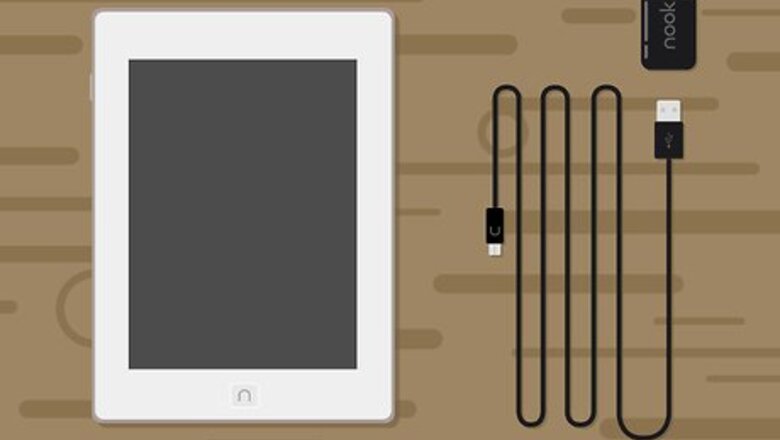

Charging the Nook
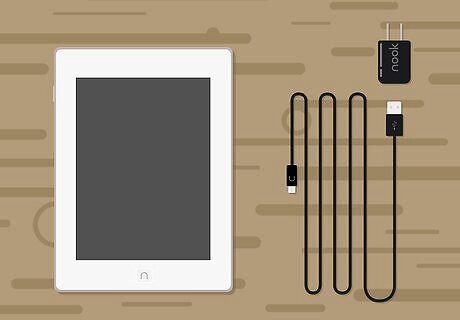
Get the data cable and power adapter that came with your Nook package. The Nook’s data cable looks very rather similar to the 30-pin data cable of iOS devices like iPads and iPhones.
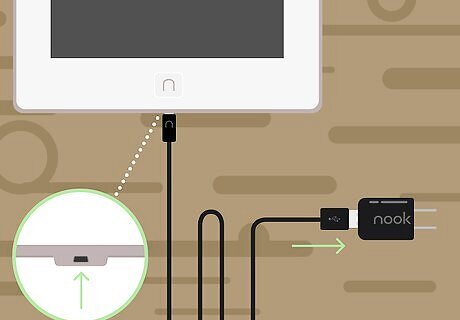
Connect the adapter and the Nook. Attach the bigger end of the cable to the allocated port at the bottom of your Nook. Plug the smaller end of the cable, the one with the male USB head, to the power adapter.
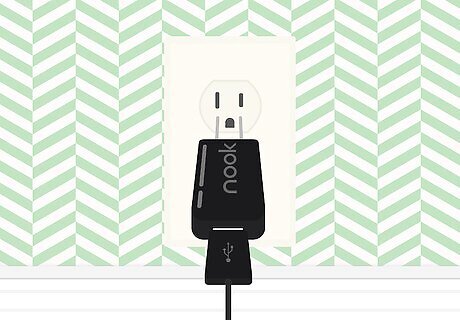
Charge the Nook. Connect the power adapter to an active power outlet. Check the LED status light of your Nook while charging. The LED light should be orange while charging and will turn green once its battery is full.
Copying Books to the Nook
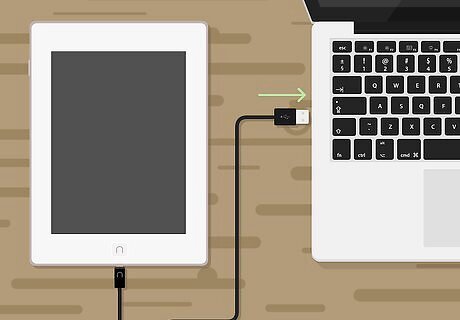
Connect your Nook to a computer using its data cable. Plug the larger end of the cable to the port on the Nook and attach the USB end to a USB port on your PC.
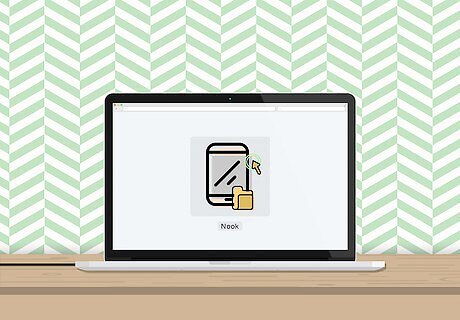
Access the storage of the Nook on your computer. Open My Computer (for Windows) or Finder (for Mac) and select the Nook from the list of devices. Click on its drive icon to view its content. Once inside, navigate inside the Nook and open the “My Documents” folder.
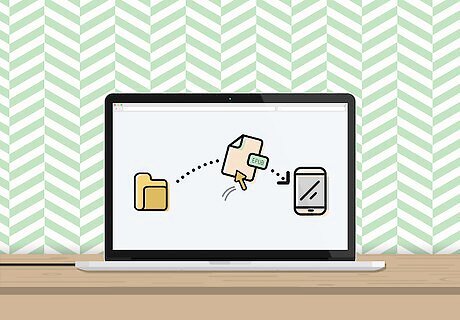
Start copying the book to the Nook. Navigate to the location on your computer of the eBook you want to copy. Click and drag the eBook file from its location on your PC to the “My Documents” folder inside the Nook.
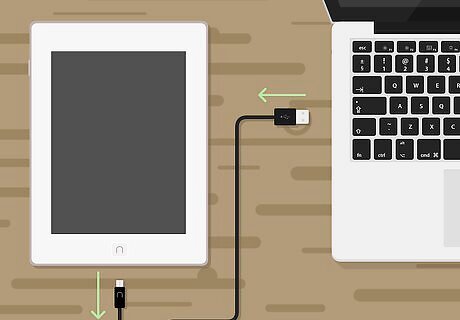
Disconnect the Nook. Once all the eBook files have been copied to the “My Documents” folder, safely eject Nook from your computer. Disconnect the data cable from the USB port once it’s safe to remove.
Reading Books on Your Nook
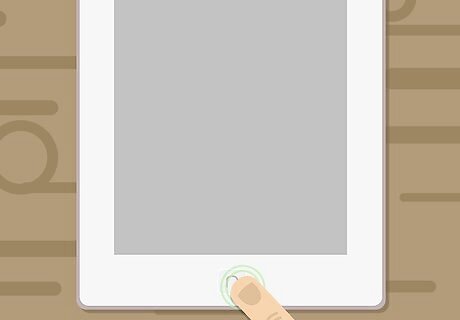
Unlock the Nook. Press the “n” button at the bottom of your Nook’s screen to activate it. Then, swipe across the bottom of the screen to the right to unlock the Nook. Its home section will appear right after you unlock it.
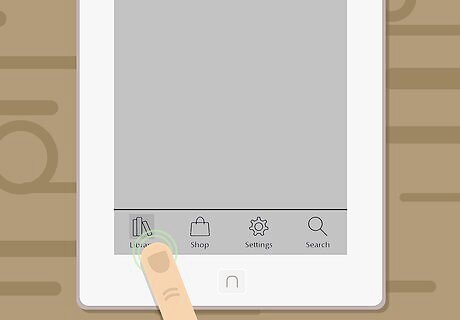
Go to the library. Press the “n” button again to display the navigation menu at the bottom of the screen and select “Library” from the menu. This will take you to the list of books currently saved on your Nook.
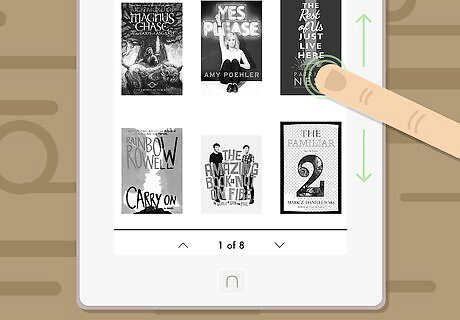
Open a book. Swipe up or down across the screen to see the complete list of all the books in your library. Once you’ve found the book you want to read, simply tap the book to open it.
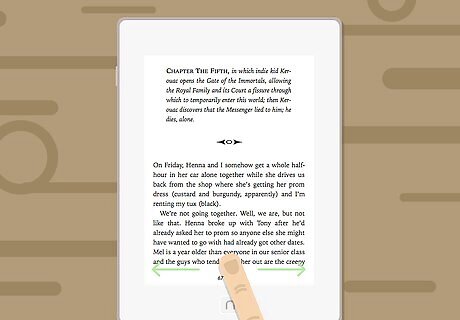
Turn pages. To navigate around the book while reading, simply swipe either left or right across the screen to turn pages. You can also use the “Previous” and “Next” button located on both the left and right side of the devices to change pages. At the bottom of the screen, you’ll see the current page number of the book you’re reading.
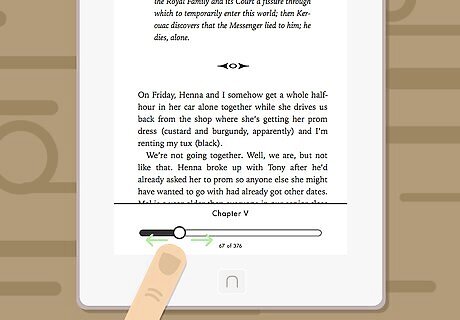
Jump to a different page. If you’d like to get to a specific page without having to turn each page one by one, simply tap the small triangle on top of the page number you’re reading (near the bottom of the screen), select “Go To,” and enter the page number that you want to go to, to immediately jump on to that specific page.
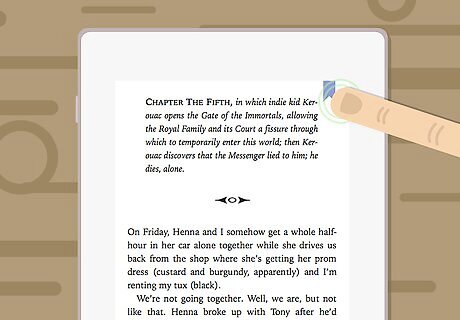
Bookmark a page. If you don’t want to forget what page you left off, you can bookmark it. Highlight some of the words on a page and select “Bookmark” from the pop-up menu to bookmark that page. When you open this eBook again, you’ll immediately be taken back right to the page where you left.
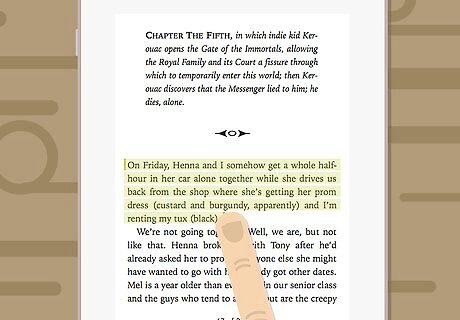
Highlight notes. If you want to be more specific and get back on the same exact words where you left off, press, hold, and drag your fingers across the screen to select the word or group of words you want to highlight. A small menu will pop up. Tap “Highlight” from the menu and the words you selected will be highlighted.
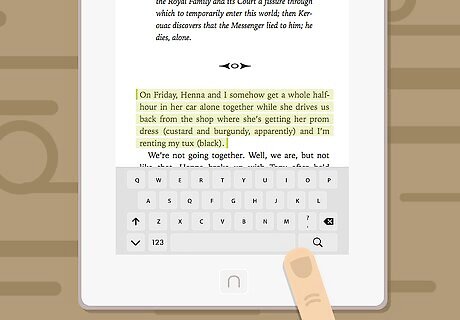
Add notes. If you’d like to make a short note about a particular word, sentence, or paragraph in a book, highlight the words just like in the step above, and tap “Add Note” from the pop-up menu. A text field will appear, and you can go ahead and type in the notes you want to add using the Nook’s keyboard. Once you’re finish, hit “Done” on your keyboard to add the notes you typed in, and you’ll be back to the page of the book. The words you selected will now be highlighted, and you’ll notice a small notepad icon along the words. Tap this icon to view the note you added.
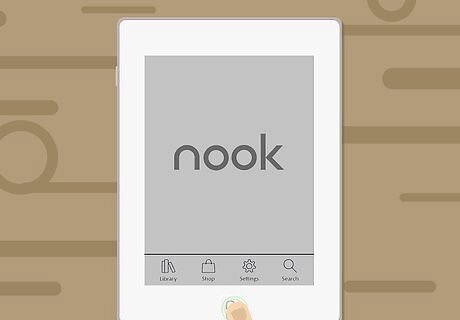
Go back to the Home screen. Press the “n” button once more to show the navigation menu and tap “Home” to go back to the Nook’s Home screen.










Comments
0 comment